Moodle integration
Written By Florian Barral
Last updated 20 days ago
Create an exam from Moodle
Here is a demo:
In short, to create an Evalmee exam from Moodle:
Go to your Moodle course space
Turn on
Edit modeAdd the Evalmee activity
Open the activity: this opens Evalmee in a new window
Click
Synchronizeto add the participants enrolled in your Moodle course. See belowImport and set up your exam as usual. See below
❗ The "Launch container" option of the Moodle activity must be set to "Default" or "New window". Otherwise, some participants may have trouble connecting to the exam.
Import an exam from Moodle
See Import an exam subject in Moodle XML format
Invite a colleague to collaborate
Other instructors enrolled in the course on Moodle are not automatically added as collaborators on the Evalmee exam, so that you can manage access rights more precisely.
You can invite colleagues the same way as for an exam not managed by Moodle: Invite colleagues
Sync participants from Moodle to Evalmee
Syncing can be triggered manually; here is a demo
In all cases, this sync is (re)triggered automatically when:
convocation emails are sent
the exam session is opened manually
grades are synced to Moodle
❗ By default, all participants in the Moodle course will be synced to Evalmee
❗ You therefore cannot currently assign the exam to specific groups of participants in your Moodle course. (Coming soon!)
Sync grades from Evalmee to Moodle
Here is a demo:
FAQ
Grades are not syncing
Grades are not syncing
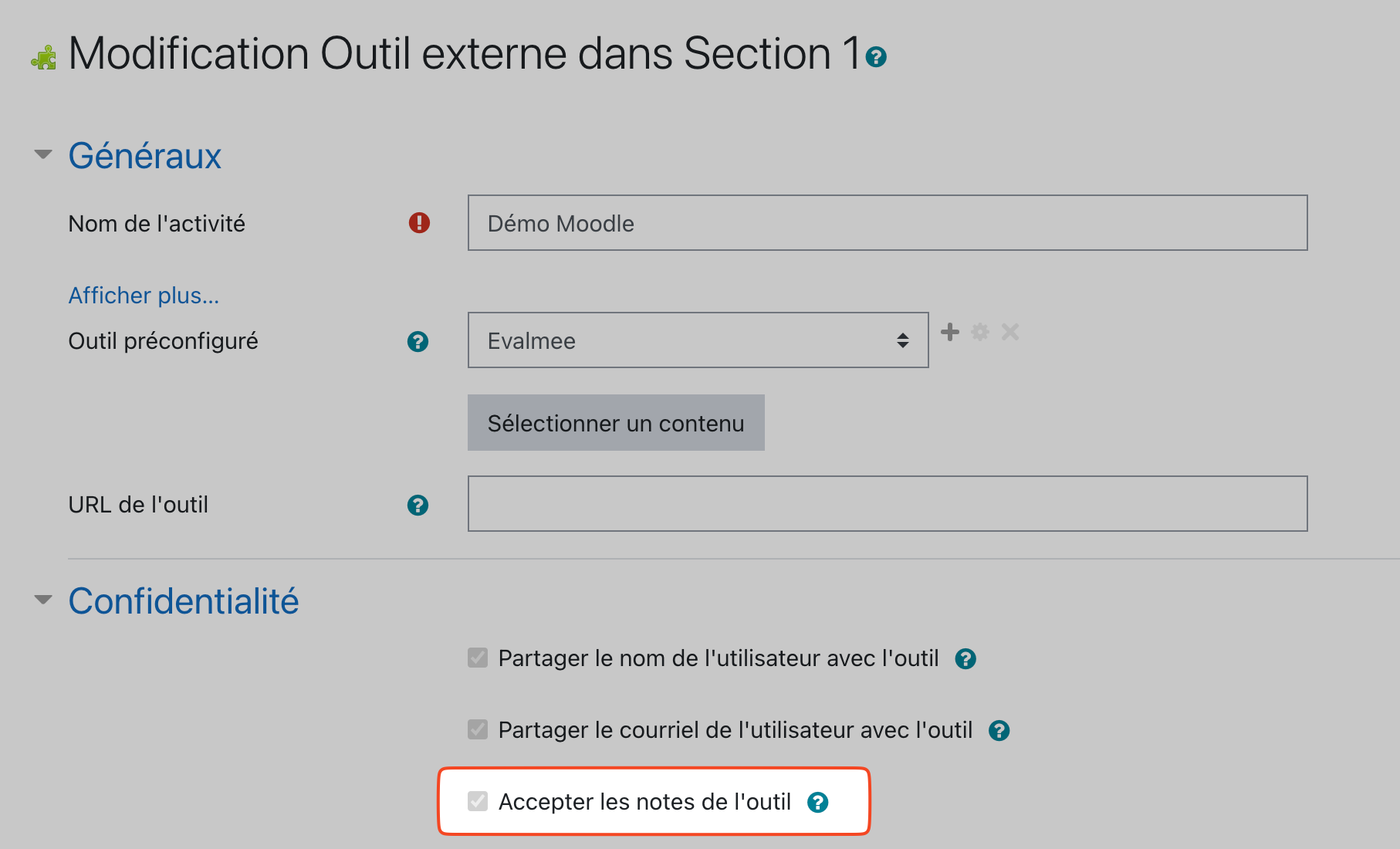
In your activity settings on Moodle, check that the “Accept grades from the tool” option is turned on. If it is not, contact your Moodle administrator to turn this option on for the Moodle integration.
How do I rename an exam?
How do I rename an exam?
The name of the Evalmee exam is synced with the name you gave it on Moodle.
To rename it, you need to:
rename it on Moodle
open the Evalmee exam from Moodle again
Was this helpful?
Still need help? Ask the team