Manage time accommodations
Written By Florian Barral
Last updated 11 months ago
Time accommodations (e.g., extra time) allow you to automatically allocate additional time to examinees when they take an exam.
Time accommodations are activated on an exam-by-exam basis.
❗ Currently, only organization administrators on Evalmee can define and assign time accommodations to examinee profiles.
[Examiner] Enable time accomodations on an exam
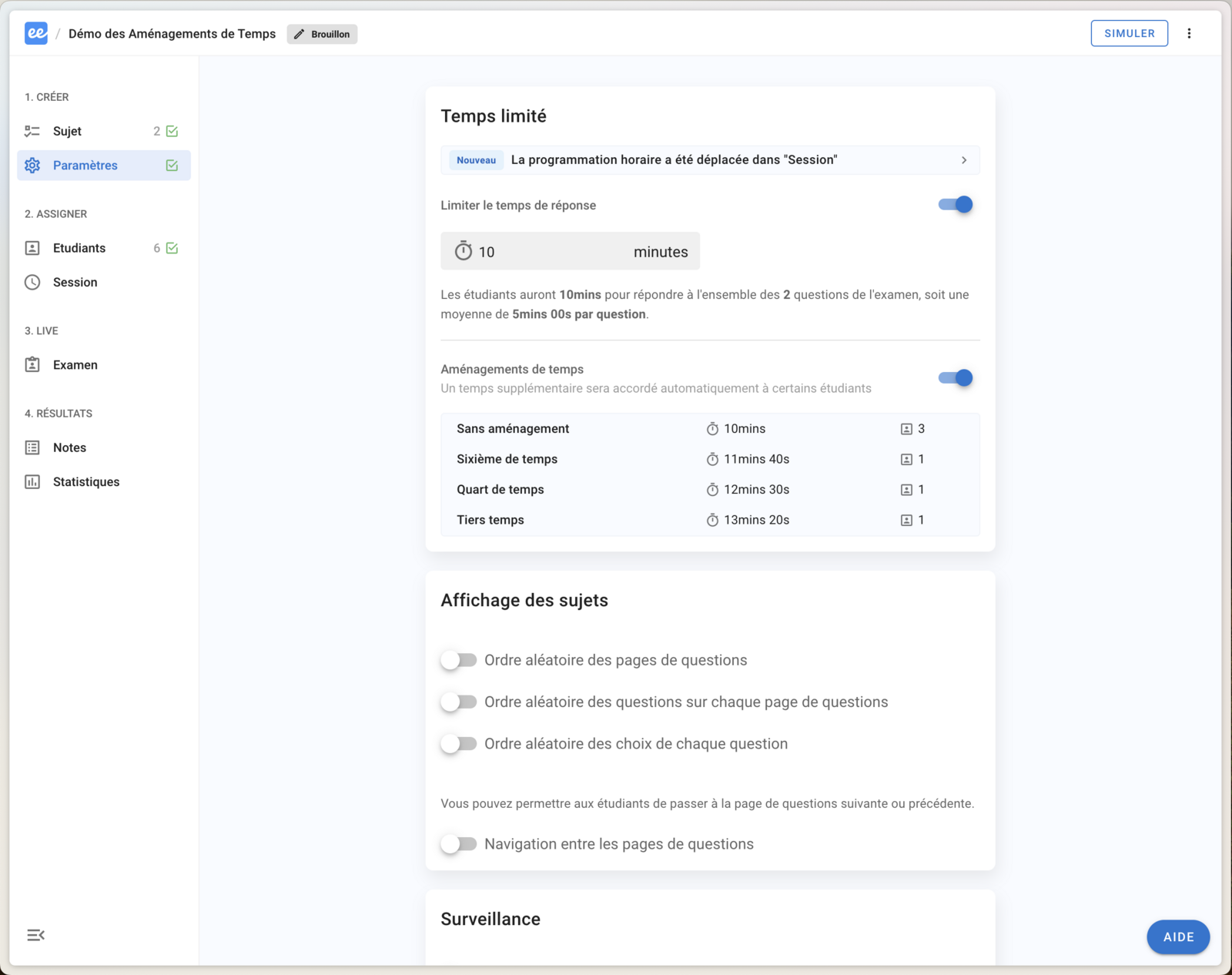
Go to the Exam Settings. You must set a time limit, and time accommodations will be automatically enabled. You can disable them if necessary.
[Examinee] Display of time accommodation
For your information, if time accommodations are enabled, examinees will see their time adjustments listed as follows:
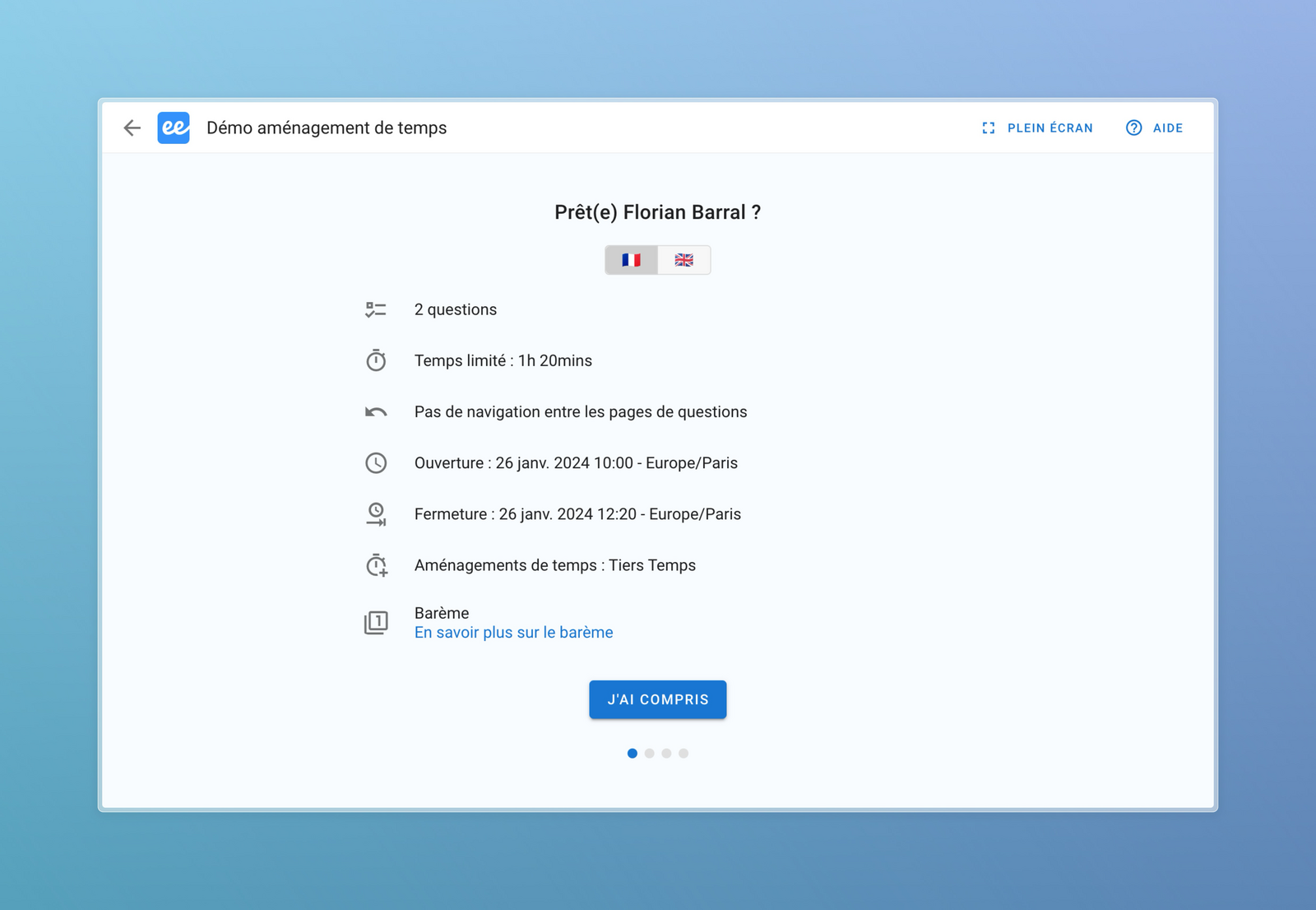
Please note that opening and closing times and time limits automatically take time accommodations into account.
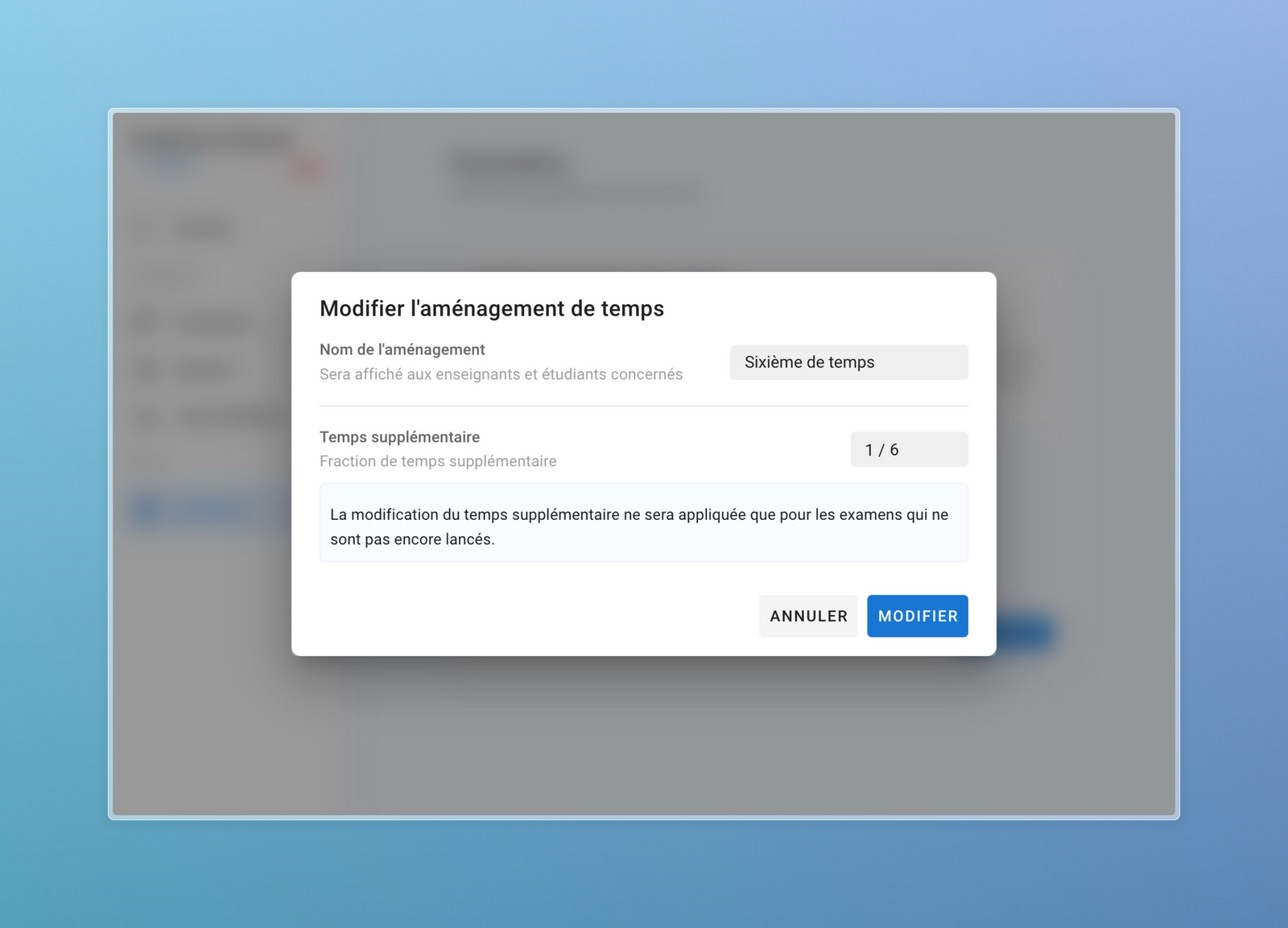
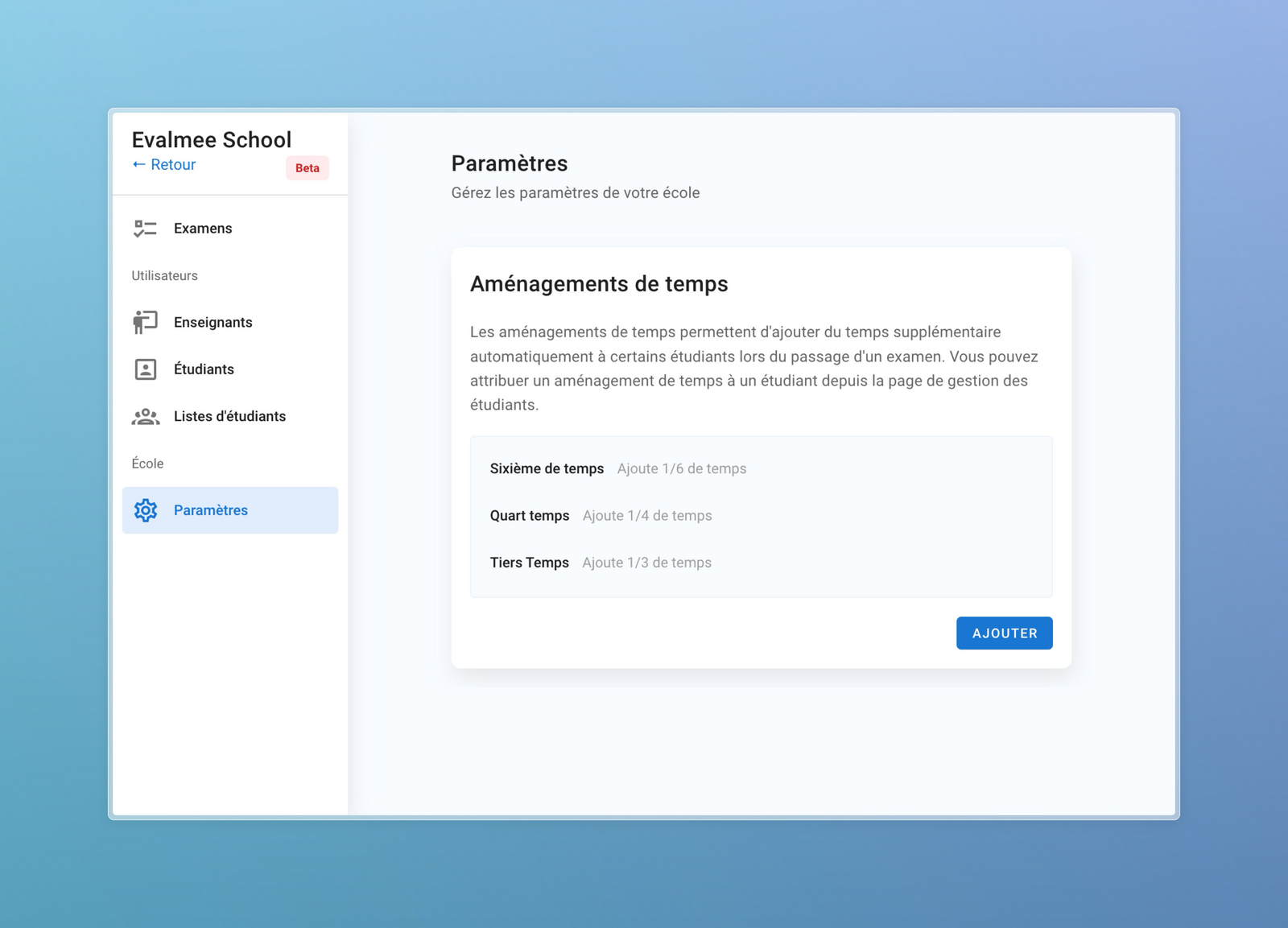
[Admin] Define time accommodations of organization
Visit your organization settings page by clicking here:
[Admin] Assign time accommodations to examinees
From the examinee administration page, you can assign accommodations to examinees one by one via the menu ⁝ > Modifier
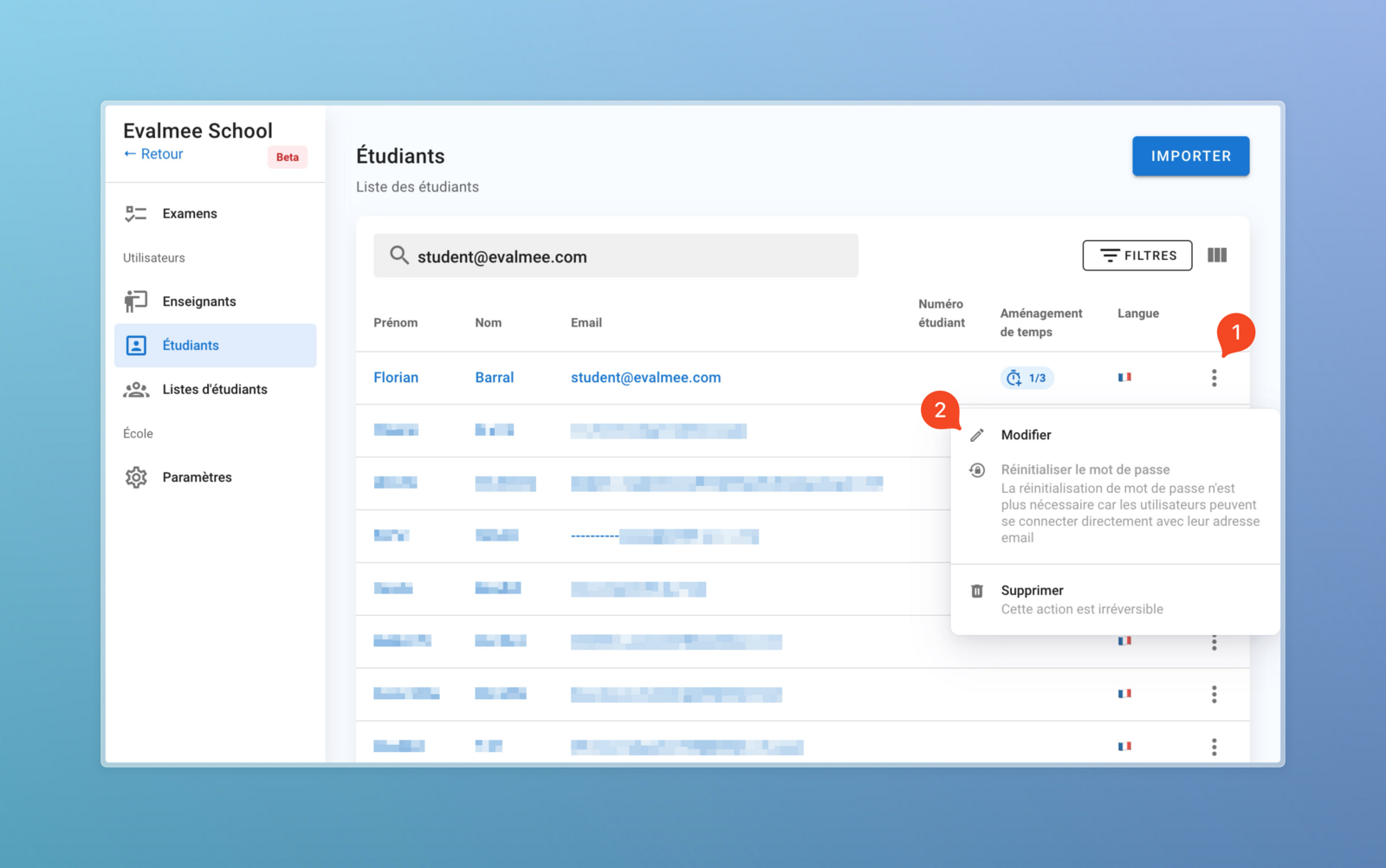
You can also assign time accommodations from the Excel import. To do this, make sure you have defined the time accommodations of your organization and then download the sample template file. You will have an additional column to define the time accommodations:

How do you assign a time accommodation to an examinee?
En résumé :
L’admin définit l’aménagement de temps
L’admin ajoute l’aménagement de temps aux étudiants concernés
L’enseignant active les aménagements de temps dans les paramètres d’un examen
In summary:
The administrator defines the time accommodation
The administrator adds the time accommodations to the examinees concerned
The examiner activates the time accommodations in the exam settings to apply them automatically for all the examinees concerned