Preview or simulate the exam
Written By Florian Barral
Last updated 18 days ago
Quick preview
In the exam subject editor, open the Preview panel with the icon at the top right (next to Organizer): it shows how the question or exercise page you hover over looks on the participant interface.
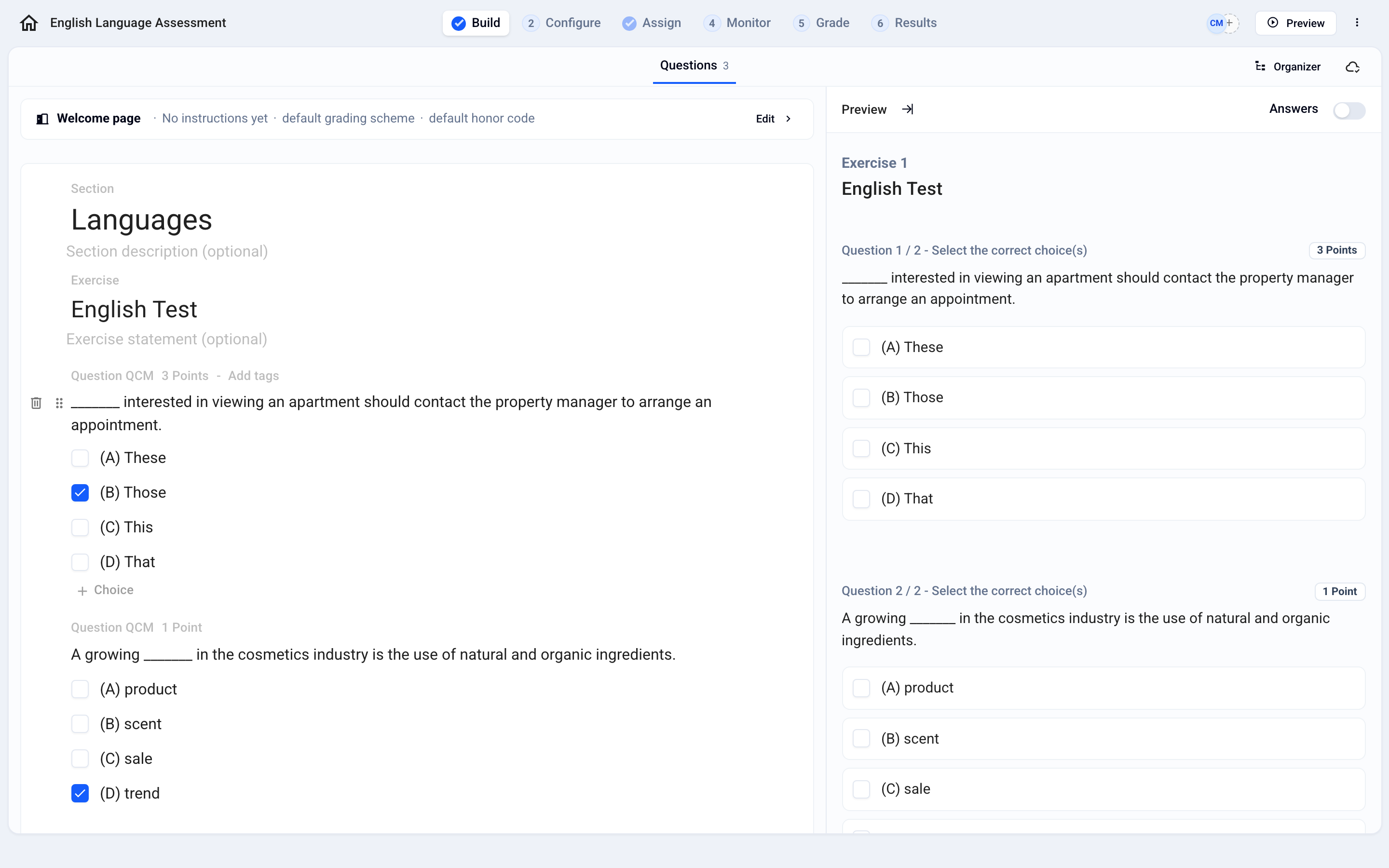
Full simulation
Simulate the full participant experience:
Click
Previewat the top right of the exam, thenSimulateat the top of the preview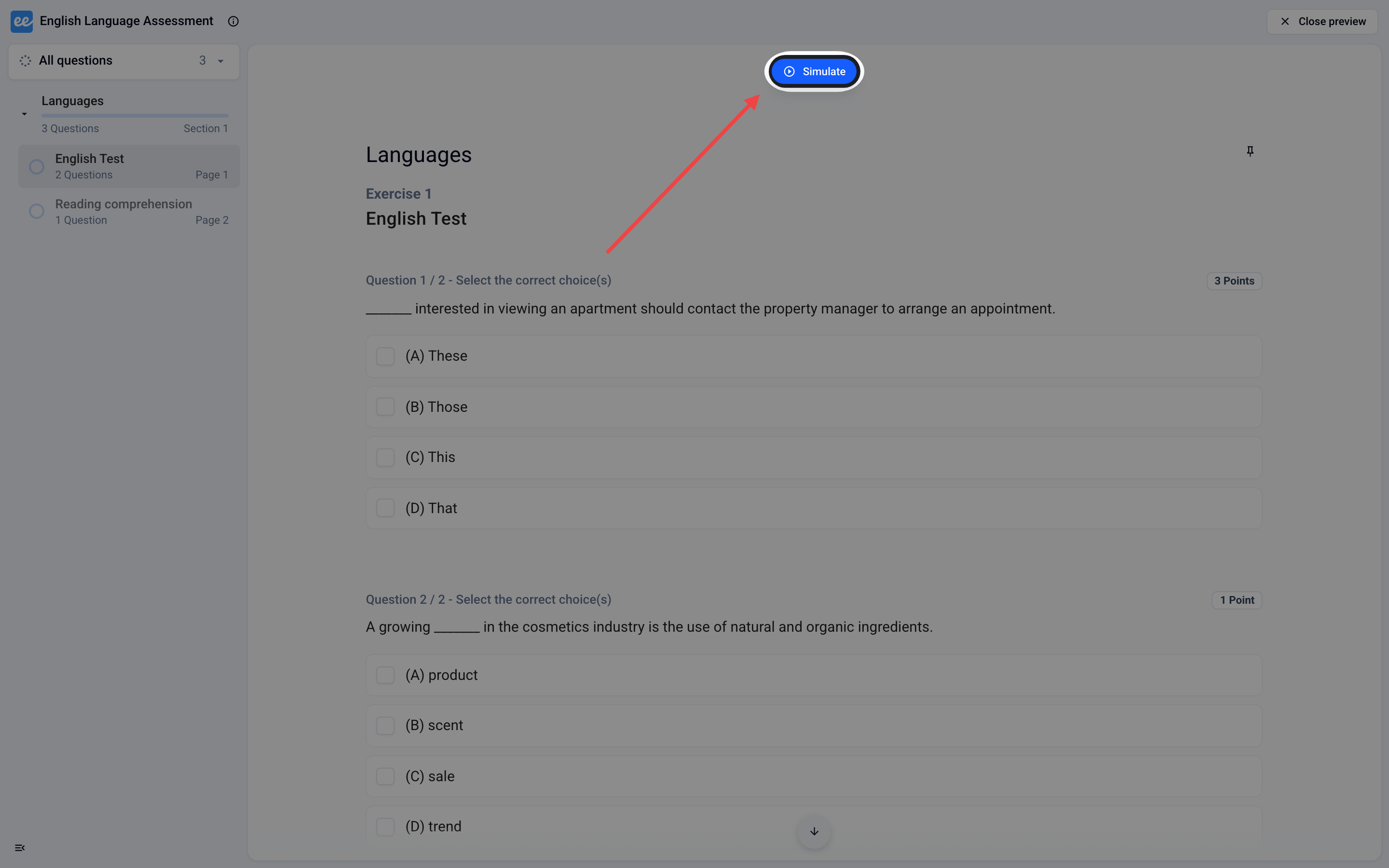
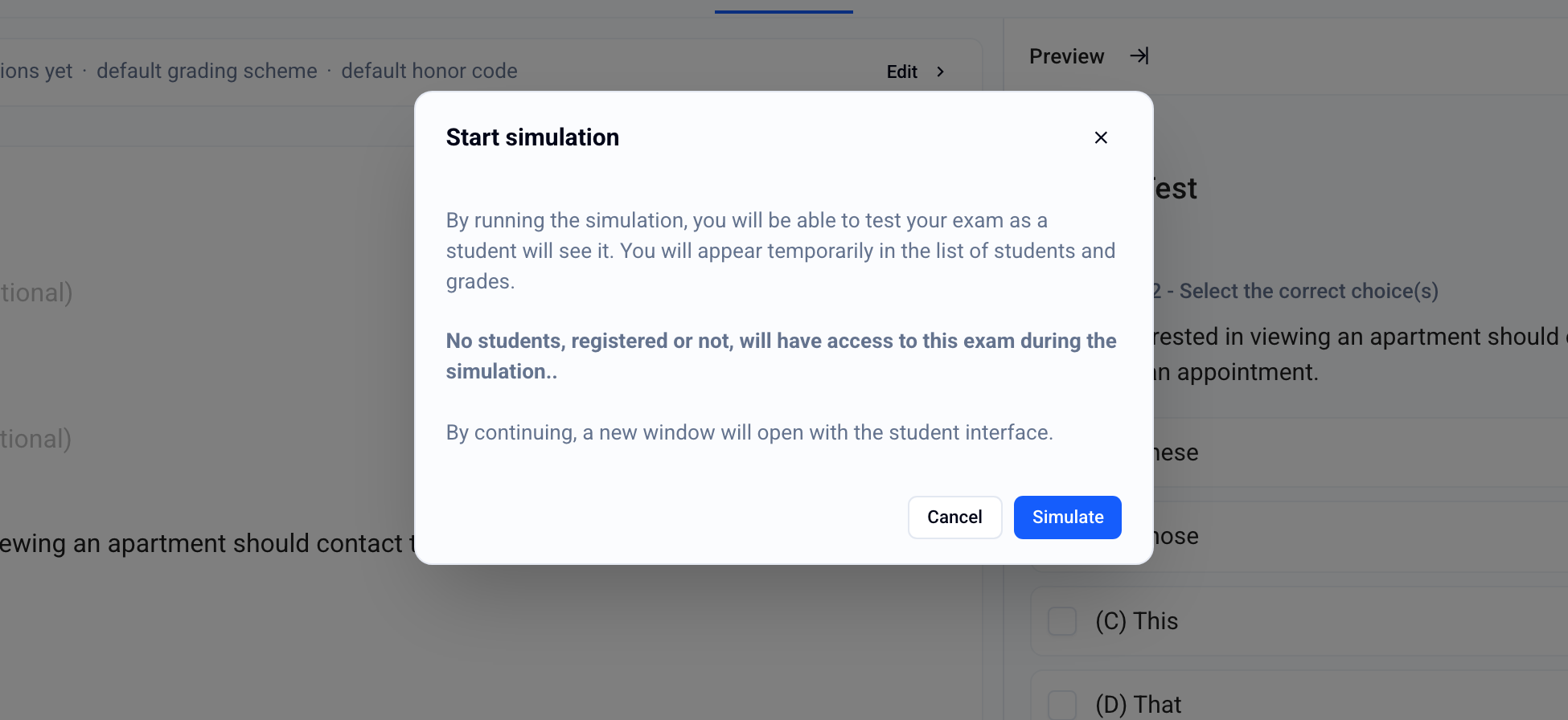
In the Start simulation window, click
Simulate. A new page opens in a new tab.❗ Make sure your browser allows pop-ups on the Evalmee site, otherwise the page will not open and you will not be able to simulate the exam.
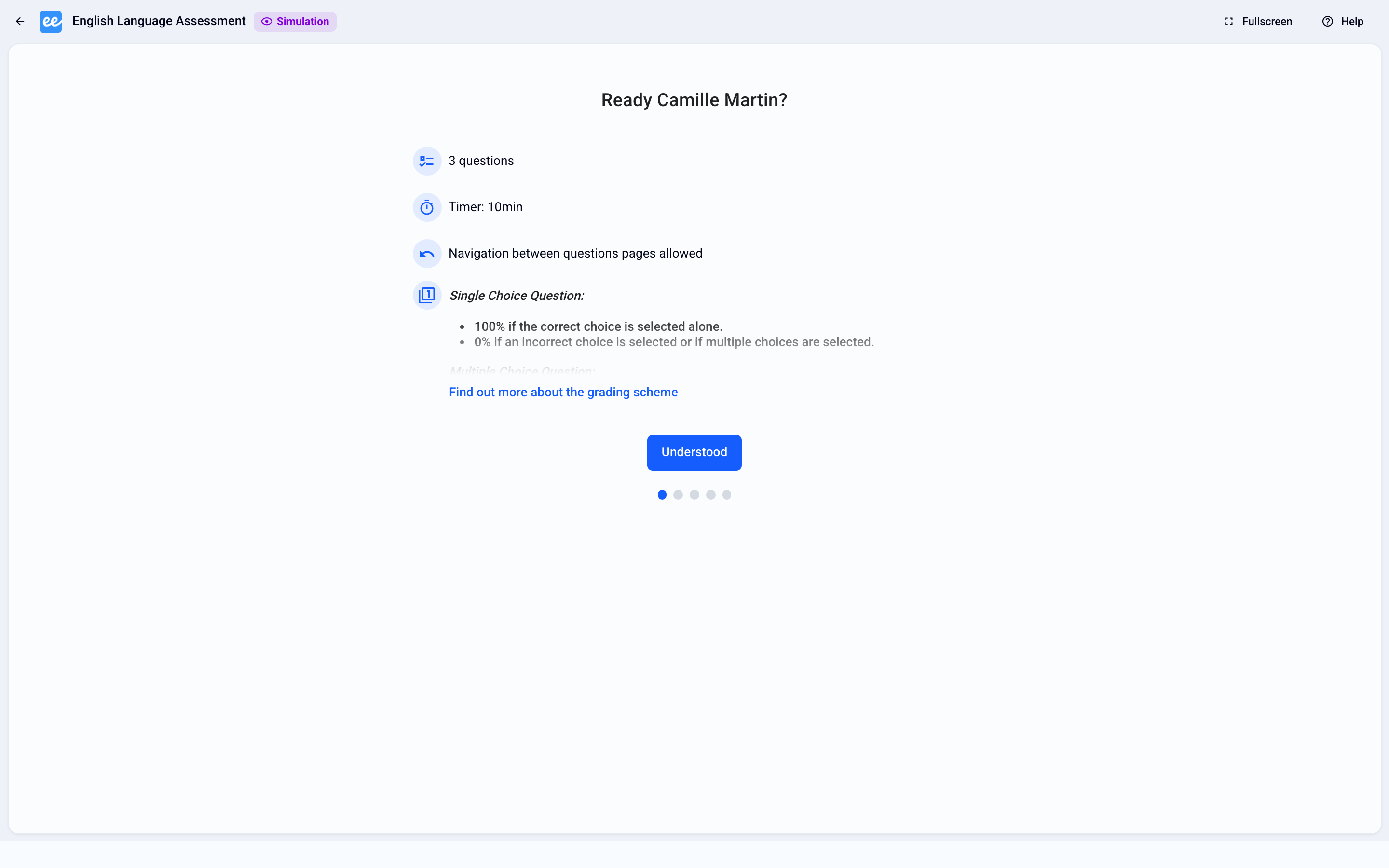
On the new page, you can then go through the full participant experience from the moment they access the exam (from their home page, from the link in the convocation email, or from their LMS): complete the exam onboarding and answer the questions
💡 At the same time, you can follow your progress as a participant from the exam management interface
❗ Note: you currently cannot simulate an exam that has ended.
Was this helpful?
Still need help? Ask the team