Short and numeric answers
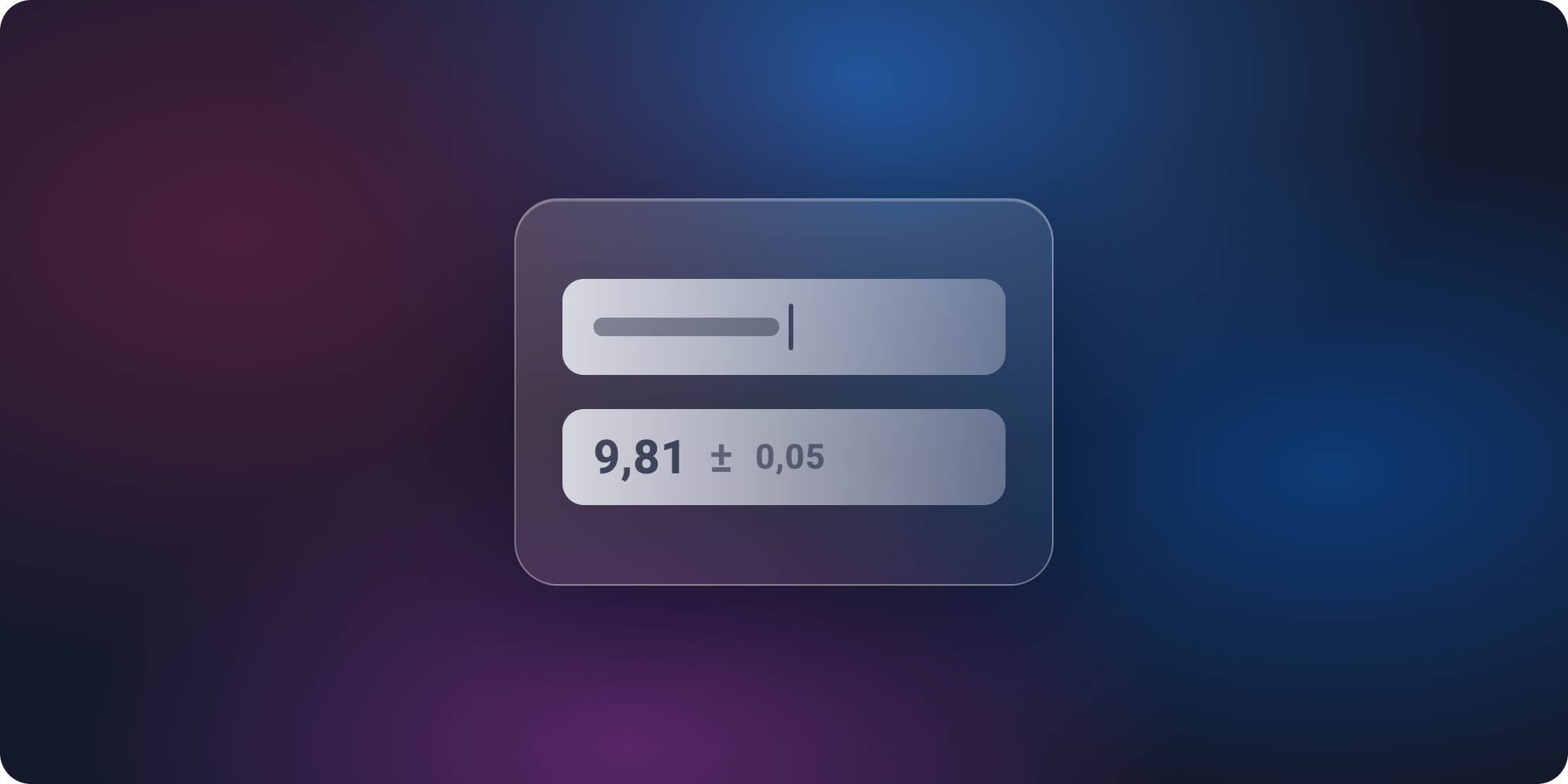
Two new automatically graded question types, to assess more than MCQs without adding to your grading workload.
Short answer
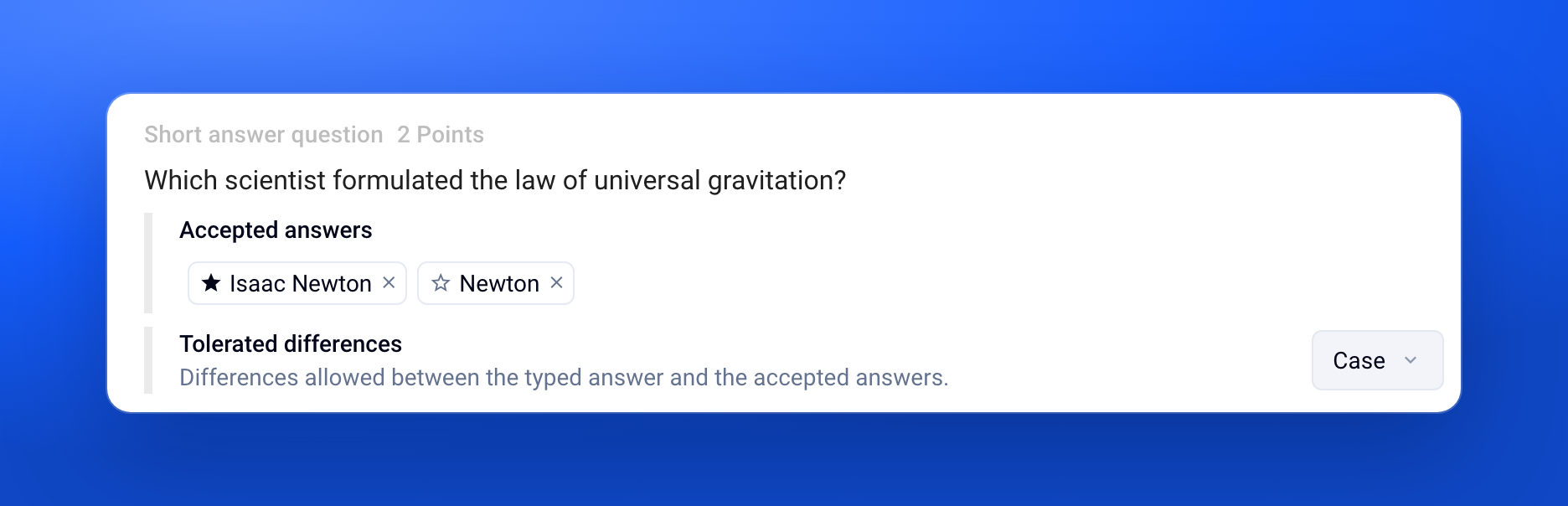
Participants type a word or a phrase. You list one or more accepted answers and choose whether case and accents matter. Ideal for a term, a date or a proper name.
After the exam, the Grade tab groups identical answers together. Spotted a variant you didn't anticipate, like a typo? Click Accept: every participant who typed it is regraded.
Numeric answer
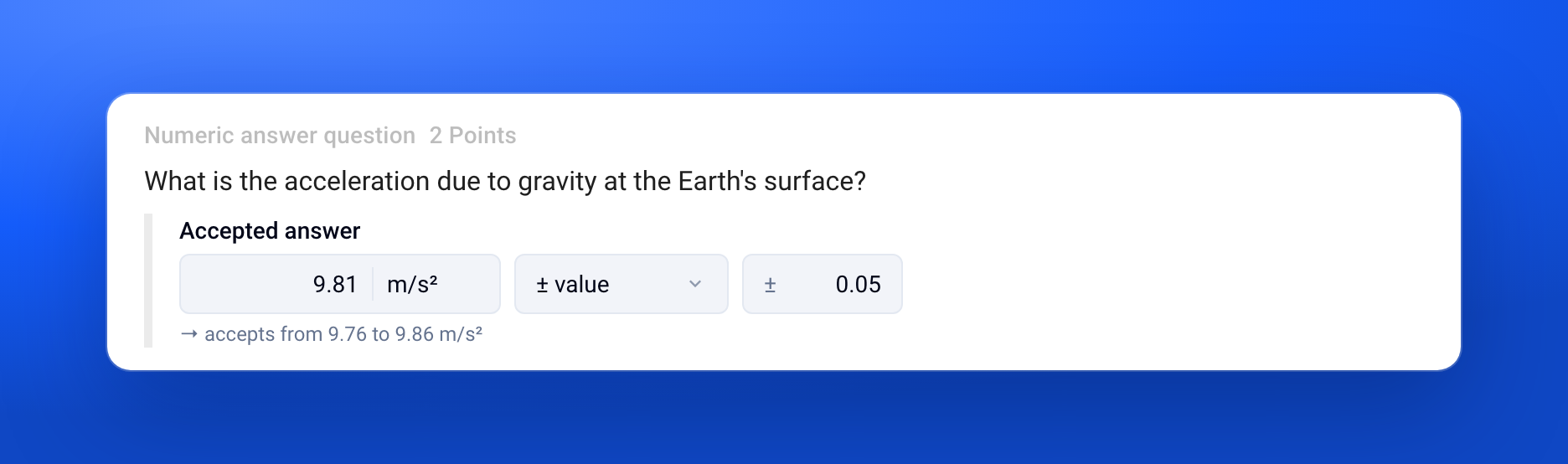
Participants type a number. You set the expected value and a margin: ± a value, ± a percentage or a range. With 9.81 ± 0.05, any answer between 9.76 and 9.86 is correct. The unit, optional, is shown in the answer field.
The margin can still be changed after the exam: you see which answers become accepted or refused before applying the change.
“Open question” becomes “Long answer”
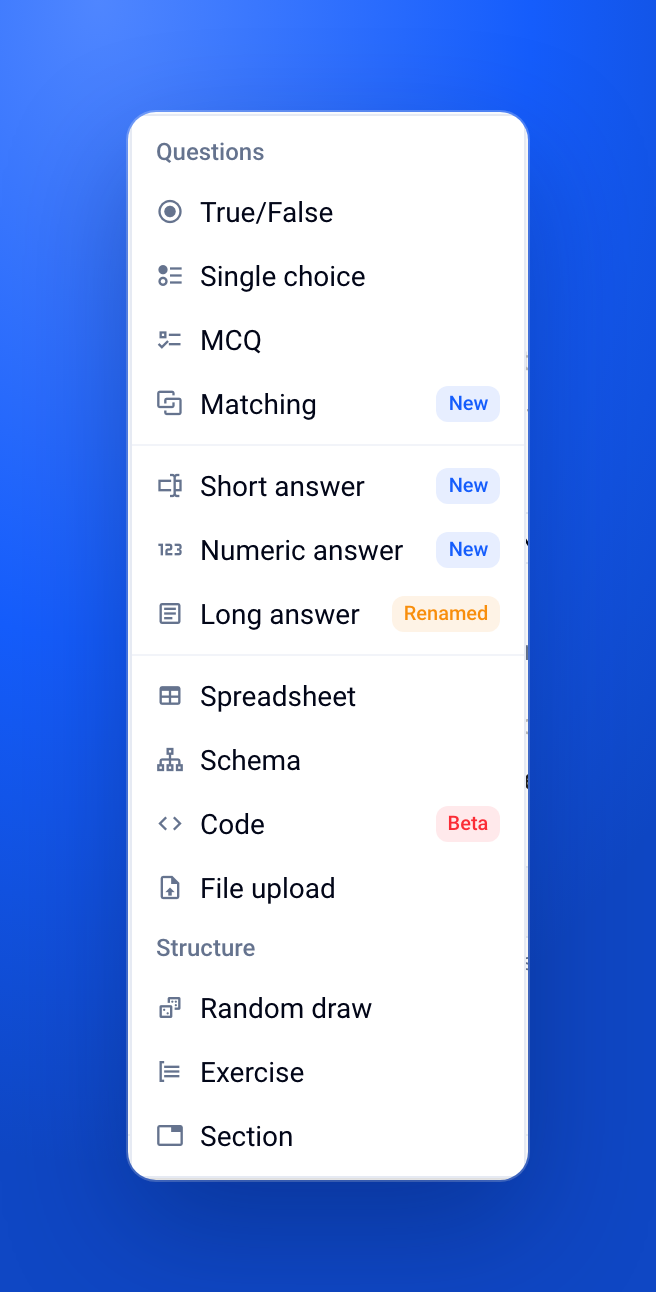
To clearly tell short, numeric and long answers apart, the Add menu has been reorganized and the open question is now called Long answer. Nothing changes in your existing exams.
✨ Other improvements
Taking an exam: participants can mark a question “To review” to come back to it later
Excel subject import: short and numeric answers are supported, and the templates include a Guide tab
All exams: organization admins can display every exam of their organization
Organization settings: the AI provider is displayed
An exam can be duplicated directly from its page
Code questions: the autocompletion option is hidden when the language doesn't offer it
Simpler menus, user menu, exam settings and exam creation steps
🐞 Bug fixes
Moodle subject import: MCQs are imported correctly
Remote proctoring: the “Sending remote proctoring data” message no longer loops at the end of an exam